How to put a habit tracker widget on your iPhone Home Screen
Touch and hold an empty part of the Home Screen, tap Edit, then Add Widget. Search for Nuvo, pick the small or the medium size, and place it. Press and hold the new widget to choose which habit it shows.
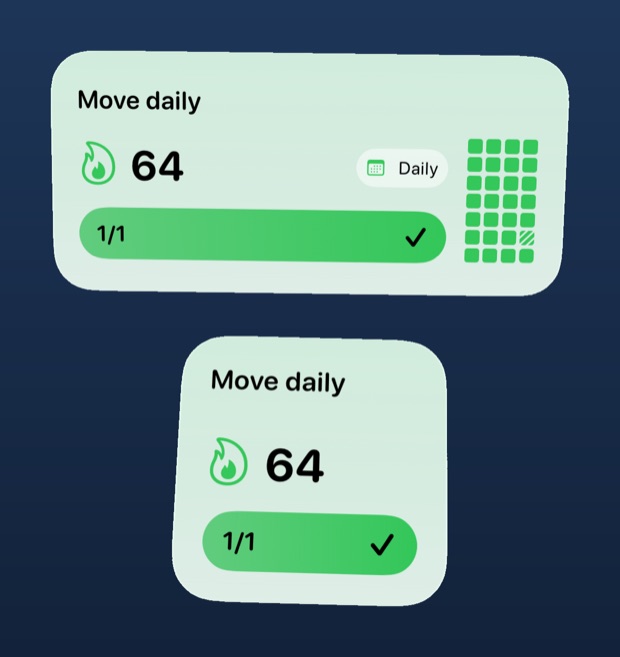
Adding the widget
Nuvo offers two sizes, both shown above. The small widget gives you one habit with its streak and today's progress. The medium one spends the extra width on the frequency and a block of recent history, which makes a gap easier to spot before it becomes a pattern.
- Enter edit modeTouch and hold an empty part of the Home Screen until the icons jiggle.
- Open the widget galleryTap Edit in the top left, then Add Widget.
- Find NuvoSearch for Nuvo in the gallery.
- Choose a sizeSwipe between the small and medium widgets and tap Add Widget.
- Pick the habitPress and hold the placed widget, tap Edit Widget, and choose which habit it shows.
Check in without opening anything
The widget carries a check-in button, so a tap on the Home Screen records the day. Nuvo never comes to the foreground. For a habit you complete at a predictable moment, that is the shortest path there is.
The display refreshes on its own schedule after that, which is normal for iOS widgets: the check-in is recorded immediately even if the number on the widget takes a moment to catch up. Opening the app always shows the current state.
Placement decides whether it works
A widget on the third page is wallpaper. Put it on the first page, in the top left, where your thumb already goes when you unlock the phone.
If the habit belongs to a particular time of day, place it next to the app you open at that time. A widget beside your news reader catches the morning; one beside a podcast app catches the commute. The point is to be in the path you already walk, not to add a new one.
Today View, the panel to the left of the first Home Screen page, works too and costs no Home Screen space. It is a weaker cue, because you have to swipe to get there, so it suits a habit you want to be able to check rather than one you keep forgetting.
Home Screen sizes only
Nuvo offers the small and the medium widget. There is no Lock Screen widget, no StandBy widget and no Apple Watch complication at the moment, so the Home Screen and Today View are where a widget can live.
Today View is the nearest thing to a Lock Screen widget: swipe right from the Lock Screen and the panel is there, with whatever you placed on it.
One widget, one habit
Each widget is configured to a single habit, chosen by pressing and holding the widget and tapping Edit Widget. For two habits, place two widgets and set each one separately. A stack works if you would rather not spend the space.
Widgets are part of Nuvo Pro, together with unlimited habits, detailed statistics and more than one reminder per habit.
Questions about this
Is the widget in the free version?
No. Home Screen widgets are part of Nuvo Pro, along with unlimited habits, detailed statistics and additional reminders per habit.
Can one widget show two habits?
Each widget shows a single habit. Place a second widget for a second habit, or put them in a stack to use the same space.